Skill
The instructions for your agent: memory, briefing, research with 12 to 20 real references, moodboard, three directions as real HTML pages, decision, design system, roll-out to web, slides, social and app, checks, filing.
MIT, free
Kiekkist works like a small studio inside your AI agent. The skill runs the process, the tool measures, the gallery supplies finished systems, and the launch package gets the site online.
The instructions for your agent: memory, briefing, research with 12 to 20 real references, moodboard, three directions as real HTML pages, decision, design system, roll-out to web, slides, social and app, checks, filing.
MIT, free
MCP server and command line: capture references, build boards, file themes, check, export to HTML, Astro, React, WordPress (block theme, first version) and Elementor (design layer).
AGPL-3.0, free
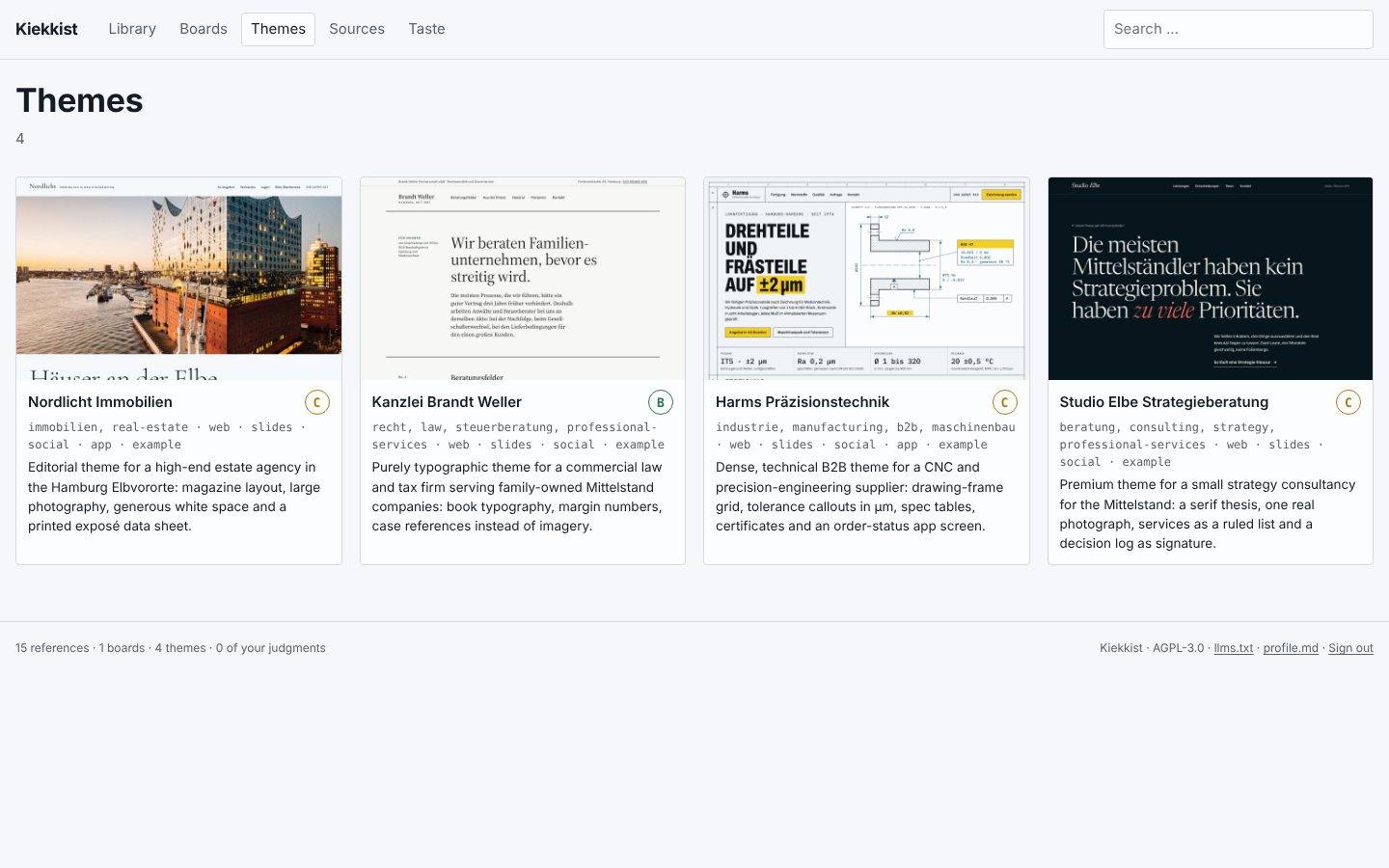
Finished, checked design systems with the full page set, social and slides, a check report and a licence for client work. Your agent searches and fetches them through the connector.
Design or All-Access
Checklist and checks for going live: domain, hosting, legal page templates, forms, analytics without cookies, accessibility statement, performance budget.
included in the tool
The agent reads your taste profile, earlier themes and the client’s brand rules before it thinks about colours.
Questions in short rounds: offer, audience, promise, proof, tone, and what it must not turn into.
Real sites from the industry and neighbouring fields, sorted by mechanism, with a scene: who looks at this page, and when?
Safe, middle, bold. Three real HTML pages with the client’s real content, different on at least three of five axes.
You decide, or your client does through a link without a login. The reason is recorded word for word.
The direction becomes DESIGN.md and tokens, then pages, slides, social graphics and app screens.
Kiekkist measures first, then a second agent that has not seen the build writes its critique. Two rounds of fixes at most.
Ordered by effort. Take the first one that fits your setup.
For any MCP client: your AI assistant in the browser, the terminal or the editor. Gallery search and free designs without an account, paid designs with a licence key.
https://kiekkist.de/mcp-galleryFor assistants that accept skills as an upload, if you want to work without a connector. The process keeps everything in your project.
kiekkist-agency.zipFor cloud sessions that check out a repository. No server needed.
skills/kiekkist-agency/The whole tool on your machine, with checker and export. Needs Node 22.
npx kiekkist mcpThe repository and the npm package go public at launch.
An AI assistant that can write and run code and connects MCP servers or skills. Or someone who knows Astro, HTML, WordPress, React or Elementor.
Everything is rendered on your side. Your text, images and client data stay in your project. There are no accounts. The Kiekkist server only knows your order, your licence and the names of registered projects.
Bug and security fixes go to everyone, for good. Your agent asks for new versions and shows you the changelog before anything is applied.
DESIGN.mdtokens.css, tokens.jsonpages/ (every page)slides/social/app/ (when included)assets/fonts/ with licence textsLICENSE.md with licence IDreport/ (check report)